
The WVU Portal is a web-based platform that provides access to a variety of online services and resources for students, faculty, and staff of West Virginia University. It serves as a centralized hub for accessing email, course materials, grades, financial aid information, and other university-related information and services.
To access the WVU Portal, you will need to enter your WVU Login username and password. If you are a new user, you will need to activate your WVU Login account by following the instructions provided on the login page.
Once you have logged in to the WVU Portal, you will be able to access a range of resources and services based on your role (student, faculty, or staff) and permissions. These may include email, course information, WVU academic calendar, registration, financial aid, student records, and more.
How to log into wvu portal
To log into the WVU Portal, please follow these steps:
- Open your web browser and go to the official website of West Virginia University at wvu.edu or directly visit the WVU Portal login page at portal.wvu.edu.
- Click on the “Login” button located in the upper-right corner of the page.
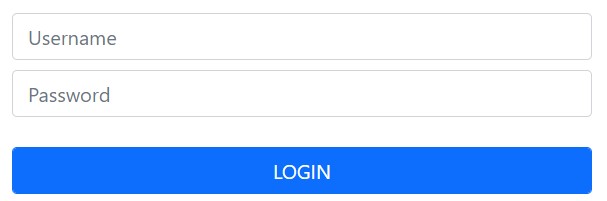
- Enter your WVU Login username and password in the provided fields.
- If you are a new user and have not yet activated your WVU Login account, you will need to click on the “Activate Account” button and follow the instructions provided on the screen to activate your account.
- Once you have entered your credentials, click on the “Login” button to access the WVU Portal.
If you are having trouble logging into the WVU Portal or activating your account, you can contact the WVU Information Technology Services (ITS) Help Desk for assistance. The ITS Help Desk can be reached by phone at (304) 293-4444 or by email at ITSHelp@mail.wvu.edu.
How to activate wvu portal
To activate your WVU Portal account, please follow these steps:
- Open your web browser and go to the WVU Portal login page at portal.wvu.edu.
- Click on the “Activate Account” button located below the login fields.
- You will be prompted to enter your WVU ID number and birthdate in the provided fields. Your WVU ID number is the 8-digit number that was provided to you when you applied to WVU.
- After entering your WVU ID number and birthdate, click on the “Continue” button.
- On the next page, you will need to provide additional information, including your first name, last name, email address, and a security question and answer. Be sure to use your WVU email address if you have one.
- After providing this information, click on the “Submit” button to complete the activation process.
Once you have activated your WVU Portal account, you can log in using your WVU Login username and password. If you have any problems activating your account, you can contact the WVU Information Technology Services (ITS) Help Desk for assistance.
How to reset your password
To reset your WVU Portal password, please follow these steps:
- Open your web browser and go to the WVU Portal login page at portal.wvu.edu/.
- Click on the “Forgot Password?” link located below the login fields.
- You will be prompted to enter your WVU Login username in the provided field. If you don’t know your WVU Login username, you can click on the “Forgot Username?” link to retrieve it.
- After entering your username, click on the “Next” button.
- You will be asked to verify your identity by providing your birthdate and answering the security question that you set up when you activated your account.
- Once you have verified your identity, you will be prompted to create a new password. Be sure to follow the password requirements provided on the screen.
- After entering your new password, click on the “Submit” button to complete the password reset process.
Conclusion:
If you are having trouble resetting your WVU Portal password, you can contact the WVU Information Technology Services (ITS) Help Desk for assistance. The ITS Help Desk can be reached by phone at (304) 293-4444 or by email at ITSHelp@mail.wvu.edu.


